 RimeLingo
Familiar pinyin input
Type pinyin, pick with Space or a number key, press Shift to switch between Chinese and English. Full pinyin, double pinyin and fuzzy pinyin are supported.

A Chinese pinyin input method for macOS
Type Chinese and the translation appears next to the cursor. Press ⌥↩ and the translation is what goes into the field.
For Macs with Apple silicon on macOS 15 or later · Free and open source · Updates itself


No more copying back and forth between a translation site and the chat window. Think it in Chinese; the input method does the rest.
Press ⌃⌥⌘E for English or ⌃⌥⌘J for Japanese. Type Chinese as usual and the translation follows your input.
⌥↩ inserts the translation, ↩ inserts the Chinese text. Nothing is shown while you are not typing.
Until you insert it you can keep editing the Chinese: move the cursor, add or delete, and the translation updates.

Select text in a chat field, a document or an editor and press the same language shortcut. When the translation appears, ⌥↩ replaces the selection and esc closes it.

English and Japanese are on by default. On the Translation page of the settings you can add Korean, French, German, Spanish, Traditional Chinese and more, and give each language its own shortcut.

On a Mac with Apple Intelligence, translation runs on the on-device model and your text stays on your computer.
You can switch to any online service with an OpenAI-compatible API by entering its address and key and allowing text to be sent to it in Settings.

RimeLingo is based on the open-source input method AIME and uses the RIME engine with the rime-ice (雾凇拼音) dictionary. Its interface is in Chinese.
Type pinyin, pick with Space or a number key, press Shift to switch between Chinese and English. Full pinyin, double pinyin and fuzzy pinyin are supported.
AI actions, phrases, symbols, frequent words and emoji in one menu. AI actions can polish text, convert between simplified and traditional Chinese, or run actions you write yourself.

Browse emoji by category and pick them from the keyboard.

Several colour schemes, your choice of font and size, horizontal or vertical candidates.

Give each application a default of Chinese or English, for example English in terminals and editors. It is set for you when you switch to that app.

Curious how much you type each day? Turn on typing statistics. They are off by default and kept only on your Mac.

Coming from Squirrel: on the Overview page of the settings, click Import to bring your schemas and custom configuration along. Your original files are not changed.
Quiet in password fields: key presses go straight to the system, with no candidates and no translation.
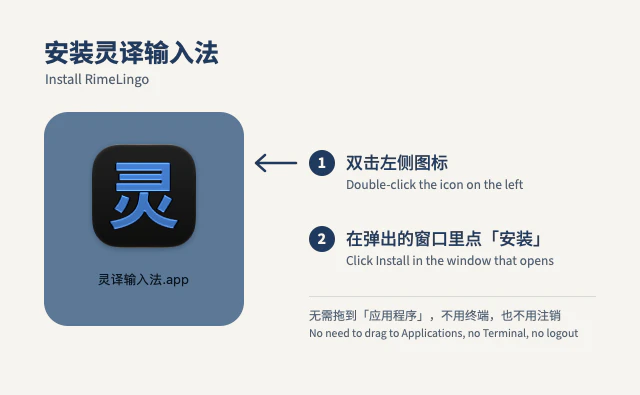
No Terminal, no administrator password, no logout.
Click Download for free on this page to get a disk image (.dmg).
Double-click the downloaded file, then double-click the app inside. When macOS asks whether to open an app downloaded from the internet, click Open.
Click 安装 (Install) in the window that appears. Then pick RimeLingo from the input menu in the menu bar, or press ⌃Space.

Later versions download by themselves and install while you are not typing. You do not repeat these steps.
No. RimeLingo is free and its source code is on GitHub. If you configure a paid online translation service, that service charges you.
Yes. Typing works the same. For translation, choose an online service with an OpenAI-compatible API on the AI assistant page of the settings.
No, only on Macs with Apple silicon.
No. Selection translation works where you can type, such as chat fields, documents and editors.
Remove RimeLingo in System Settings › Keyboard › Input Sources, then delete RimeLingo.app from the Input Methods folder in your Library. Details